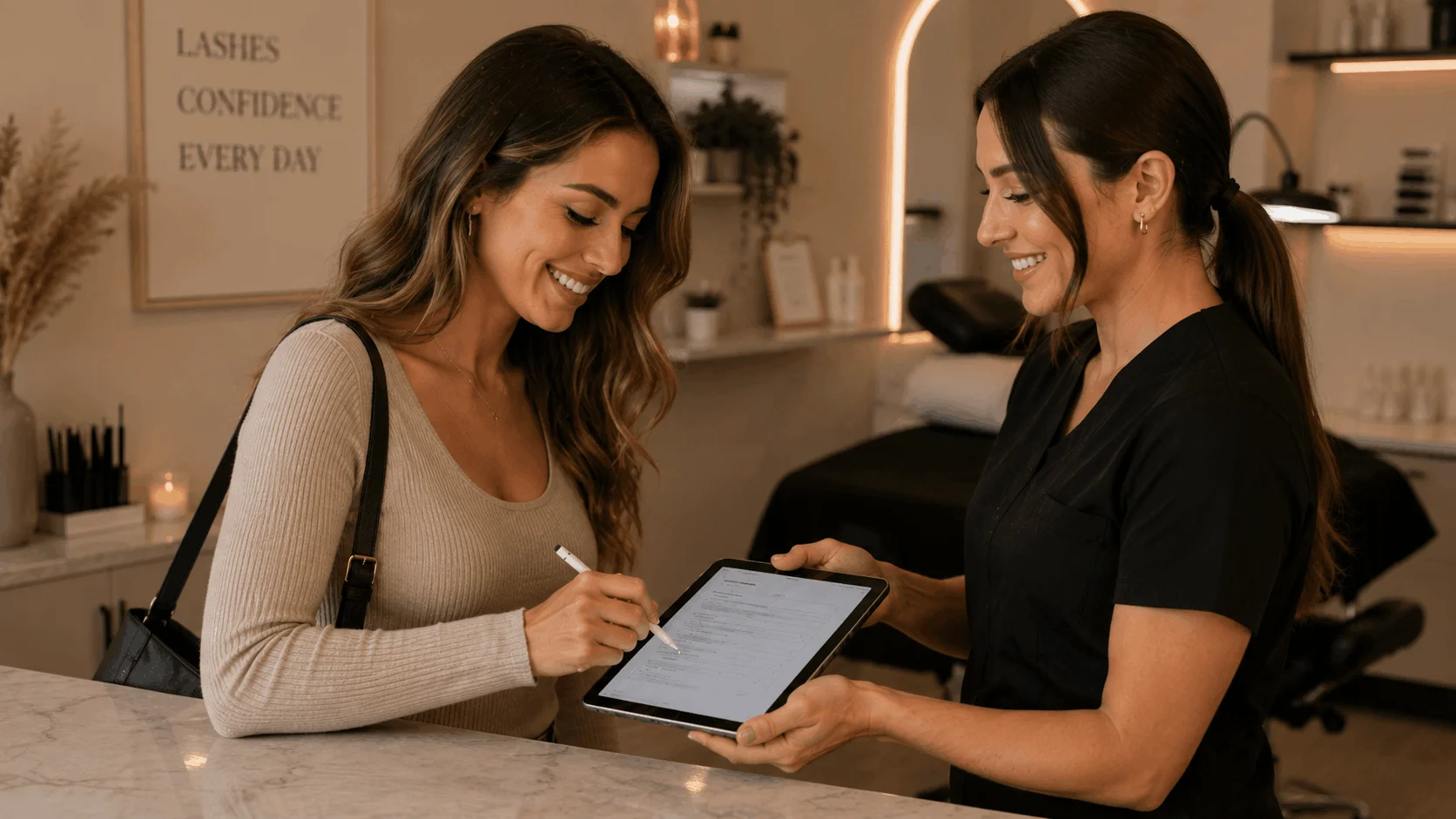
A QR code waiver lets customers scan a code with their phone, open a digital waiver, complete the required information, and sign before participating in an activity.
Instead of keeping paper waivers at reception or asking every customer to type a long web address, you can place a QR code on a sign, counter, entrance, rental desk, or check-in area. The customer scans it, reviews the waiver, signs, and submits the completed form.
This can be useful for gyms, climbing centers, sports clubs, trampoline parks, rental businesses, adventure parks, events, personal trainers, and many other businesses that regularly collect liability waivers.
In this guide, we'll explain what a QR code waiver is, how to create one, where to display it, what your waiver should include, and how to make the signing process easier for customers.
What is a QR code waiver?
A QR code waiver is a digital waiver that participants can open by scanning a QR code with their phone.
The QR code itself is not the waiver. It simply links to an online form.
The process usually looks like this:
Scan QR code → Open waiver → Enter details → Review terms → Sign → Submit
For example, a climbing gym could display a sign near reception that says:
New visitor? Scan to sign your waiver.
The customer scans the code, opens the climbing waiver, enters their details, acknowledges the risks, signs electronically, and submits the form.
There is no paper form to hand out, scan, or manually file afterward.
Why use a QR code for waivers?
The main advantage of a QR code is simple: it gives customers a fast way to reach the correct waiver.
Without one, a business may need to:
- Email the waiver manually
- Ask customers to find the form on the website
- Give everyone a shared tablet
- Print paper waivers
- Ask customers to type a URL
- Send links individually
A QR code reduces that friction.
Customers can usually scan the code with their phone camera and open the waiver immediately.
Customers can use their own phones
You do not need a tablet for every participant.
A visitor can scan the QR code, complete the form, and submit it using their own device.
Multiple people can sign at the same time
This is especially useful for groups.
If ten people arrive together, they can all scan the same code instead of waiting for one shared tablet.
No URL typing
Even a short URL can be inconvenient to type manually.
A QR code takes the customer directly to the correct form.
Less paperwork
Completed digital waivers can be stored online instead of being kept in folders, drawers, or filing cabinets.
Faster check-in
Customers can complete the waiver while they are waiting to:
- Check in
- Rent equipment
- Register for an activity
- Join a class
- Enter a venue
One waiver can be shared in several ways
The same form can be available through:
- A QR code
- A direct link
- Your website
- Booking confirmation
This gives customers several ways to complete the waiver.
How to create a QR code waiver
Creating a QR code waiver requires two things:
- A digital waiver
- A QR code that links to it
Here is the complete process.
Step 1: Create your digital waiver
Start with an online waiver.
You can use a general liability waiver form or choose a template designed for your specific activity.
For example:
- Gym waiver form
- Sports waiver form
- Yoga liability waiver
- Personal training liability waiver
- Martial arts waiver
- Climbing waiver
- Paintball waiver
- Trampoline park waiver
- Boat rental liability waiver
An activity-specific template can make it easier to include the right risk acknowledgements and participant information.
Step 2: Customize the waiver for your business
Do not publish a generic form without reviewing it.
Add details that reflect your actual business and activity, such as:
- Business name
- Activity
- Location
- Relevant risks
- Participant responsibilities
- Safety rules
- Emergency provisions
- Parent or guardian consent where applicable
The content should match the real activity.
A horse riding waiver, for example, may address risks related to falls, unpredictable animal behavior, riding equipment, and interaction with horses.
A gym waiver form would focus on different issues, such as exercise, physical exertion, and equipment use.
Step 3: Add participant information
Decide what information you actually need to collect.
A basic waiver may include:
- Full name
- Phone number
- Date
- Signature
Depending on the activity, you may also need:
- Date of birth
- Emergency contact
- Medical information
- Parent or guardian details
- Additional questions
- Consent checkboxes
Try to keep the form focused.
Long forms can create unnecessary friction, especially when customers are completing them on their phones.
Step 4: Add risk acknowledgement
The waiver should clearly explain the risks relevant to the activity.
For example, a climbing waiver might mention:
- Falls
- Slips
- Equipment-related injuries
- Collisions
- Muscle strains
- Other risks associated with climbing
A bike rental business would likely mention different risks, such as:
- Traffic
- Falls
- Uneven surfaces
- Collisions
- Equipment problems
Avoid copying generic risk language from an unrelated activity.
Step 5: Add acknowledgement checkboxes
Before signing, you can ask the participant to actively confirm important statements.
For example:
I confirm that I have read and understood this waiver and voluntarily agree to its terms.
For a specific activity, you can make the acknowledgement more relevant.
For example:
I understand that participation in climbing involves risks including falls, collisions, equipment-related injuries, and other risks associated with the activity.
Checkboxes can reinforce important terms, but they should not replace the waiver itself.
Step 6: Add an electronic signature
The participant should be able to sign the waiver directly from their phone.
Place the signature after the agreement so the customer has an opportunity to review the terms before signing.
You may also want to record:
- Signer's name
- Signing date
- Parent or guardian signature
- Relevant acknowledgement fields
The exact legal requirements for electronic signatures depend on the jurisdiction and type of agreement.
Step 7: Publish the waiver
Once the form is ready, publish it so participants can access it online.
Before creating the QR code, test the waiver yourself on a phone.
Check:
- Does the page load quickly?
- Is the text readable?
- Are fields easy to complete?
- Does the signature field work?
- Is the submit button obvious?
- Does the completed form save correctly?
A QR code makes the form easier to access, but it does not fix a poor mobile experience.
Step 8: Generate the QR code
Once your waiver has a shareable link, turn that link into a QR code.
Some digital waiver platforms generate this automatically.
If your waiver platform provides a built-in QR code, use that code rather than creating and maintaining a separate link manually.
The QR code can then be:
- Downloaded
- Printed
- Added to signs
- Added to marketing materials
- Displayed digitally
Step 9: Test the QR code
Always test the final QR code before using it with customers.
Scan it using more than one device if possible.
Check:
- Does it open the right waiver?
- Does it work on iPhone?
- Does it work on Android?
- Can it be scanned at the size you plan to print?
- Is the code clear enough in normal lighting?
Also make sure the code has not been stretched, blurred, cropped, or placed on a visually confusing background.
Step 10: Display the QR code
Place the QR code somewhere customers naturally see it before participating.
Good locations include:
- Reception
- Entrance
- Check-in desk
- Rental counter
- Waiting area
- Equipment pickup point
- Event registration desk
- Printed signage
Do not display a QR code without explaining what it does.
Use a clear instruction such as:
Scan to sign your waiver
or:
First visit? Scan here before your session.
Step 11: Store completed waivers
After the customer submits the form, the completed waiver should be easy to find later.
A digital system can help you search records by:
- Participant
- Date
- Activity
- Event
- Customer
This is one of the main advantages of digital waivers over paper forms.
How to create a QR code waiver with AgreeDock
With AgreeDock, the process can be kept simple.
1. Choose a waiver template
Start with a general liability waiver or an activity-specific template.
2. Customize your form
Add your own:
- Terms
- Participant details
- Questions
- Acknowledgements
- Signature field
3. Publish the waiver
Make the form available online so participants can complete it digitally.
4. Share it with a QR code
Display the QR code at your business so customers can open the waiver from their phones.
5. Collect signatures
Participants complete the form and sign electronically.
6. Keep signed waivers organized
Completed forms stay stored digitally so you can find them when needed.
QR code waiver examples
QR code waivers are particularly useful for businesses where customers arrive at a physical location.
Gym QR code waiver
A gym can place a QR code at reception with a simple instruction:
New member? Scan to complete your gym waiver.
The code opens a gym waiver form.
This can work well for:
- Day passes
- Trial sessions
- New members
- Drop-in visitors
Personal trainer QR code waiver
A personal trainer can display the code in a studio or include it in a welcome message.
New clients can scan it and complete a personal training liability waiver before their first session.
Sports QR code waiver
Sports clubs, tournaments, camps, and organizers can place QR codes at registration.
Participants scan the code and complete a sports waiver form.
If minors participate, the form may also need parent or guardian information.
Trampoline park QR code waiver
A trampoline park can place QR codes near:
- Entrance
- Ticket counter
- Queue area
- Seating area
Visitors can scan the code and complete a trampoline park waiver while waiting.
Climbing gym QR code waiver
A climbing gym can ask first-time visitors to scan a QR code before entering the climbing area.
The code opens a climbing waiver, where the customer can acknowledge the relevant risks and sign.
Paintball QR code waiver
Paintball groups often arrive together.
Instead of handing out paper forms, the venue can display one QR code that opens the paintball waiver.
Each participant can complete it from their own phone.
Adventure park QR code waiver
Adventure parks can place QR codes around the check-in or registration area.
Visitors scan the code and complete an adventure park waiver before participating.
Equipment rental QR code waiver
Rental businesses can display QR codes at the pickup desk.
Depending on the business, the code could open a:
The customer completes the agreement before receiving the equipment.
QR code waiver vs sending a waiver link
Both methods lead to the same digital form.
The difference is how the customer accesses it.
QR code waiver
Direct waiver link
Best for in-person customers
Best for remote communication
Scan from a sign or display
Click from email, SMS, or website
No URL typing required
Easy to send before arrival
Useful at reception
Useful after booking
Many people can scan the same code
Can be sent directly to individual customers
In many cases, using both works best.
Send the waiver link before arrival, then keep a QR code available for anyone who has not completed it yet.
QR code waiver vs kiosk or tablet
Some businesses use a shared tablet at reception for waiver signing.
That can still be useful, but a QR code offers some advantages.
With a shared tablet, customers may have to wait for the person in front of them.
With a QR code, several participants can complete the waiver simultaneously from their own phones.
A practical setup could be:
Primary option: QR code for customer phones
Backup option: Reception tablet
This gives customers flexibility and prevents one device from becoming a bottleneck.
Best practices for QR code waivers
A QR code takes seconds to generate, but the overall signing experience still matters.
Make the waiver mobile-friendly
Most people scanning the QR code will be on a phone.
Avoid forms that require users to:
- Zoom constantly
- Scroll sideways
- Tap tiny fields
- Navigate unnecessary pages
Keep the layout simple and readable.
Keep the form focused
Only ask for information you actually need.
If the form only requires contact information, acknowledgement, and a signature, do not add a long list of unrelated questions.
Add clear instructions
Do not assume customers know what the QR code is for.
Use simple copy such as:
Scan to sign your waiver
or:
Complete your waiver before participating.
Give the QR code enough space
Avoid placing the code in a crowded design.
Make sure there is enough clear space around it and that the contrast is strong enough for a phone camera to recognize it.
Keep a backup option
Some customers may have:
- A dead phone
- Camera problems
- Accessibility needs
- Technical difficulties
Keep another way to sign available.
A tablet or direct link is usually enough.
Test after making changes
Whenever you change the form or the sharing setup, scan the QR code again.
Make sure it still opens the correct waiver.
Avoid requiring an app download
The easiest experience is:
Scan → Open browser → Complete form → Sign
Requiring someone to install an app creates unnecessary friction.
Where should you put a waiver QR code?
The best place is somewhere customers will naturally see it before they need to participate.
Reception
This is one of the most useful locations.
Place the code where new customers wait or check in.
Entrance
An entrance sign works well when everyone must complete the waiver before entering the activity area.
Rental desk
Place the QR code where customers collect equipment.
Event check-in
For events, place several signs around the registration area so participants do not all need to queue at one desk.
Waiting area
Customers can complete the waiver while they wait.
Printed tickets
You can add a QR code to printed tickets or confirmation materials.
Front desk cards
A small tabletop card can work well for gyms, studios, rental businesses, and other physical locations.
Should customers sign the waiver before arriving?
When possible, yes.
Giving customers the option to sign before arrival can reduce waiting time at check-in.
You can send the waiver link through:
- Booking confirmation
- Welcome email
- Reminder email
- Event registration confirmation
Then use the QR code as a backup when they arrive.
A simple process could be:
Before arrival: Send the waiver link.
At arrival: Display the QR code for anyone who has not signed yet.
You do not need to choose between QR codes and direct links. Both can point to the same waiver.
Are QR code waivers legally binding?
The QR code itself does not determine whether a waiver is legally enforceable.
It is simply a way of opening the digital form.
The more important factors relate to the waiver and signing process, such as:
- What the waiver says
- Whether the terms are clearly presented
- Whether the participant agrees voluntarily
- Whether the signer intends to sign
- How the signature is collected
- Whether the completed agreement is retained
- The type of activity and liability involved
- Applicable law
Electronic signatures are recognized in many jurisdictions, but the exact legal effect of a waiver depends on the relevant laws and circumstances.
A QR code does not make a waiver stronger or weaker. It simply makes the form easier to access.
> Important: This article provides general information and is not legal advice. Waiver and electronic signature requirements vary by jurisdiction and situation. Consider obtaining legal advice for documents involving significant liability.
Frequently asked questions about QR code waivers
What is a QR code waiver?
A QR code waiver is a digital waiver that participants access by scanning a QR code with their phone. The code opens the online form where they can enter their information, review the agreement, sign, and submit it.
How do I make a QR code for a waiver?
Create and publish a digital waiver first. Once the form has a shareable link, generate a QR code that points to that link. Some digital waiver platforms generate the QR code automatically.
Do customers need an app to scan a waiver QR code?
Usually not. Most modern smartphones can scan QR codes using the built-in camera or system features and open the waiver in a browser.
Can someone sign a liability waiver on their phone?
Yes. Digital waiver systems can allow participants to complete the form and provide an electronic signature directly from a phone or other compatible device.
Can multiple people use the same waiver QR code?
Yes. The same QR code can direct multiple participants to the same online waiver. Each person then completes and submits their own form separately.
Where should I display my waiver QR code?
Common locations include reception desks, entrances, rental counters, check-in areas, event registration desks, waiting areas, and printed signage.
Should I use a QR code or send the waiver by email?
Both can be useful. A direct link works well before arrival, while a QR code is convenient for anyone who still needs to complete the waiver at your location.
Can I use a QR code for a liability waiver?
Yes. A QR code can link directly to an online liability waiver form, allowing participants to open and sign it from their phones.
Create your QR code waiver
A QR code can make waiver signing much simpler for both customers and staff.
Instead of printing forms or asking customers to type a URL, you can give them one clear instruction:
Scan. Review. Sign.
With AgreeDock, you can create a digital waiver, customize it for your business, collect electronic signatures, share the form by QR code or direct link, and keep completed documents organized online.
Choose a ready-made template or create your own waiver for your activity.