Waiver kiosk
Turn any tablet into a waiver kiosk
Put an iPad or Android tablet at the front desk and let customers sign one after another. Every waiver is saved online the moment it is signed.
- Free to start
- No special hardware
- iPad and Android
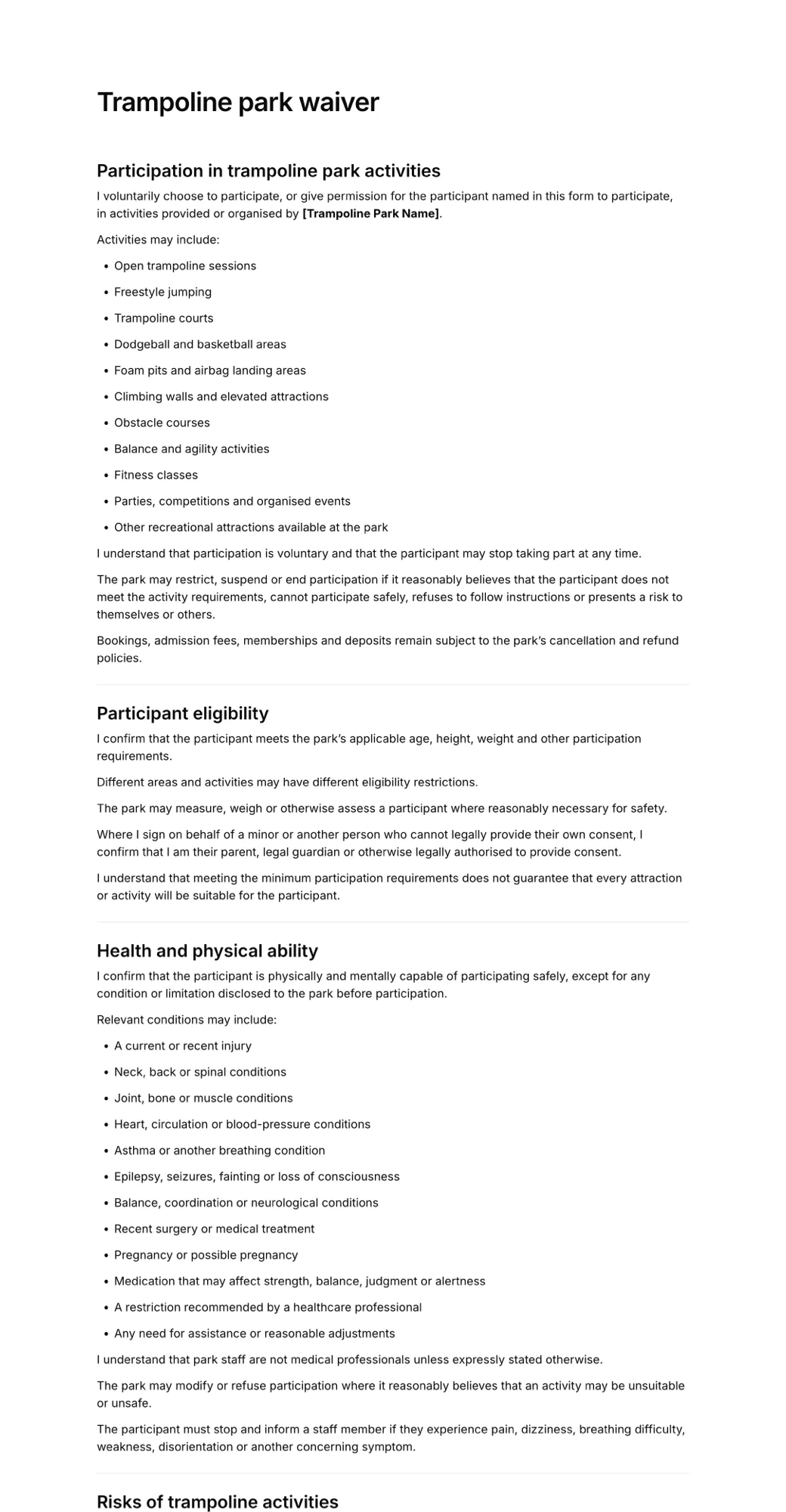

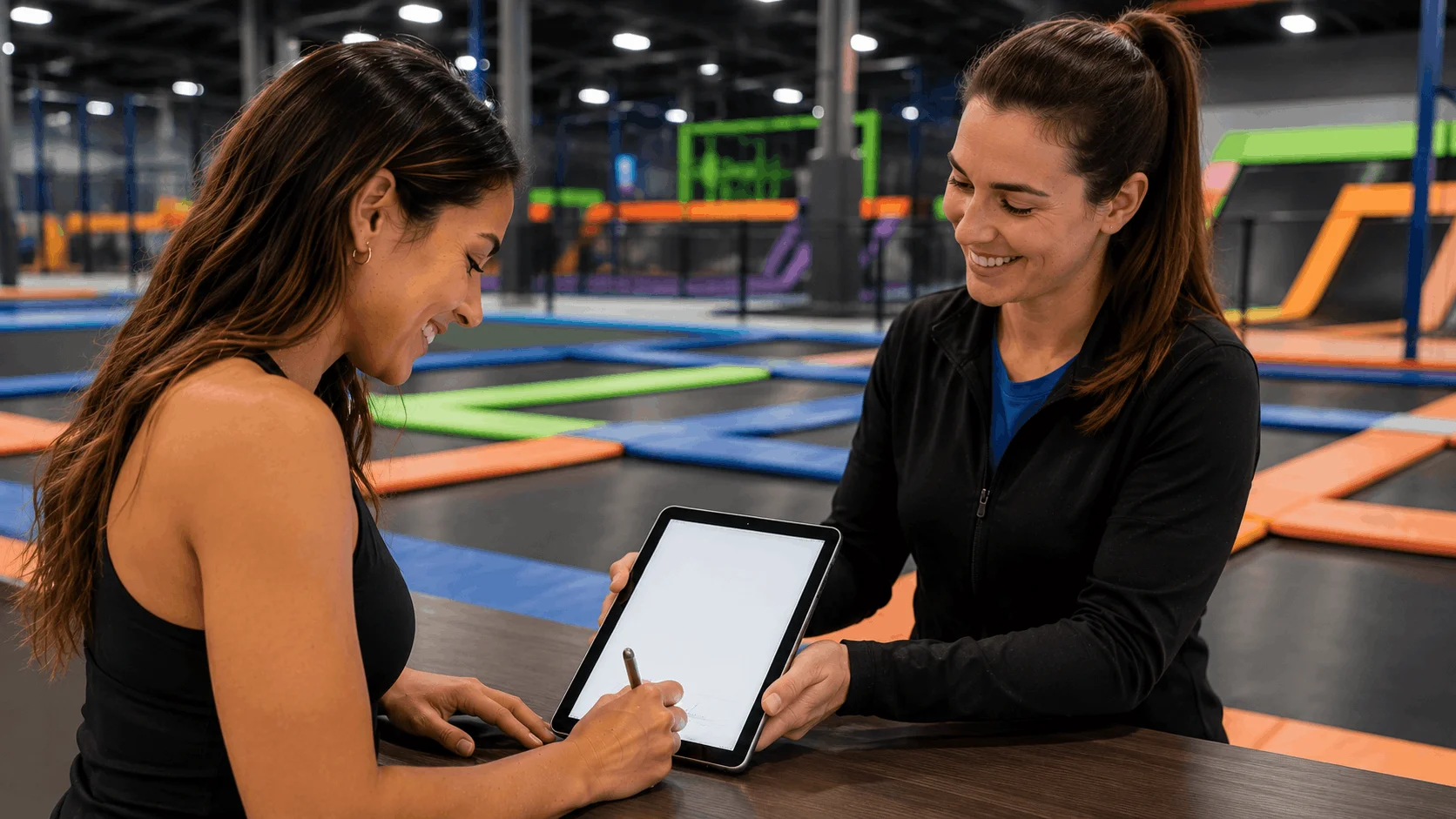
A front desk waiver station in minutes
Any tablet you already own
iPad, Android tablet or a laptop on the counter. Open your waiver link and it is ready for customers.
Ready for the next person
After signing, one tap opens a blank form, so a queue of customers can sign on the same device.
QR code for busy days
When the line gets long, customers scan the QR code and sign on their own phones alongside the kiosk.
Find who has signed
Signed waivers appear in your dashboard straight away, searchable by name before the session starts.
Why use a tablet waiver kiosk?
Not every customer signs before they arrive. Walk-ins, guests in a group booking and parents who missed the email still need to sign before they take part, and paper forms at the counter are where queues start.
A kiosk gives them a place to sign without staff help. They read the waiver, fill in their details and sign with a finger, and the next person steps up. Staff only need to check the name in the dashboard.
Pair the kiosk with a link in your booking confirmation so most customers arrive already signed. See our electronic waiver app for sending waivers ahead of time.
How to set up a waiver kiosk
- 1
Create and publish your waiver
Start from a template or let AI draft one for your activity. Add the questions and checkboxes you need, then publish it.
- 2
Open it on your tablet
Open the signing link in the tablet's browser, add it to the home screen, and lock the tablet to that page.
- 3
Customers sign one after another
Each person signs and taps to start a new form for the next. Signed waivers show up in your dashboard instantly.
Kiosk setup checklist
A few minutes of setup keeps the kiosk running smoothly through a busy day.
- Publish your waiver and copy its signing link
- Open the link in the tablet's browser
- Add it to the home screen for one-tap access
- Turn on Guided Access (iPad) or screen pinning (Android)
- Mount the tablet in a stand or case at the desk
- Keep the tablet plugged in and auto-lock off
- Print the QR code next to it as a second lane
- Check names in your dashboard at check-in
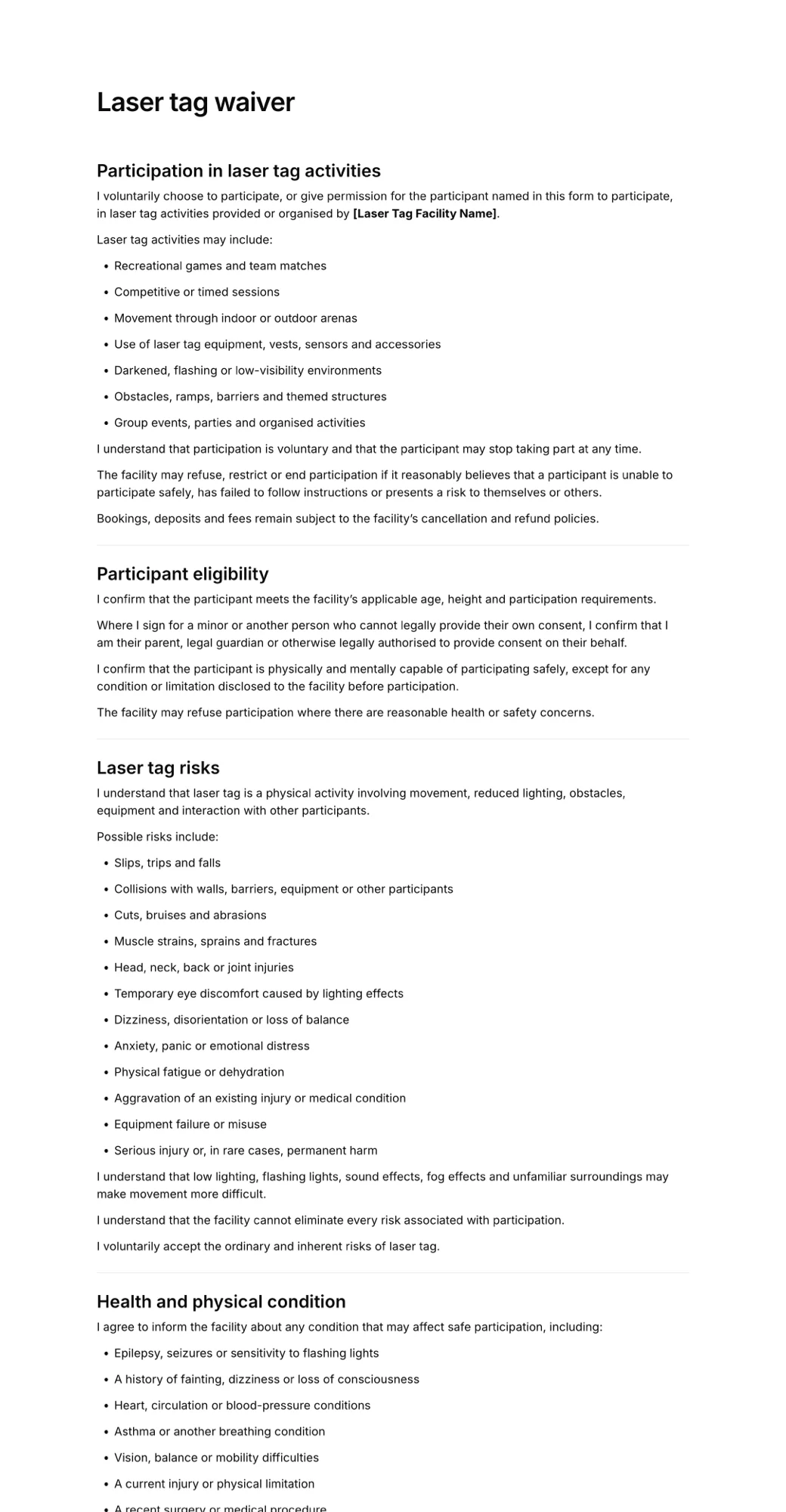
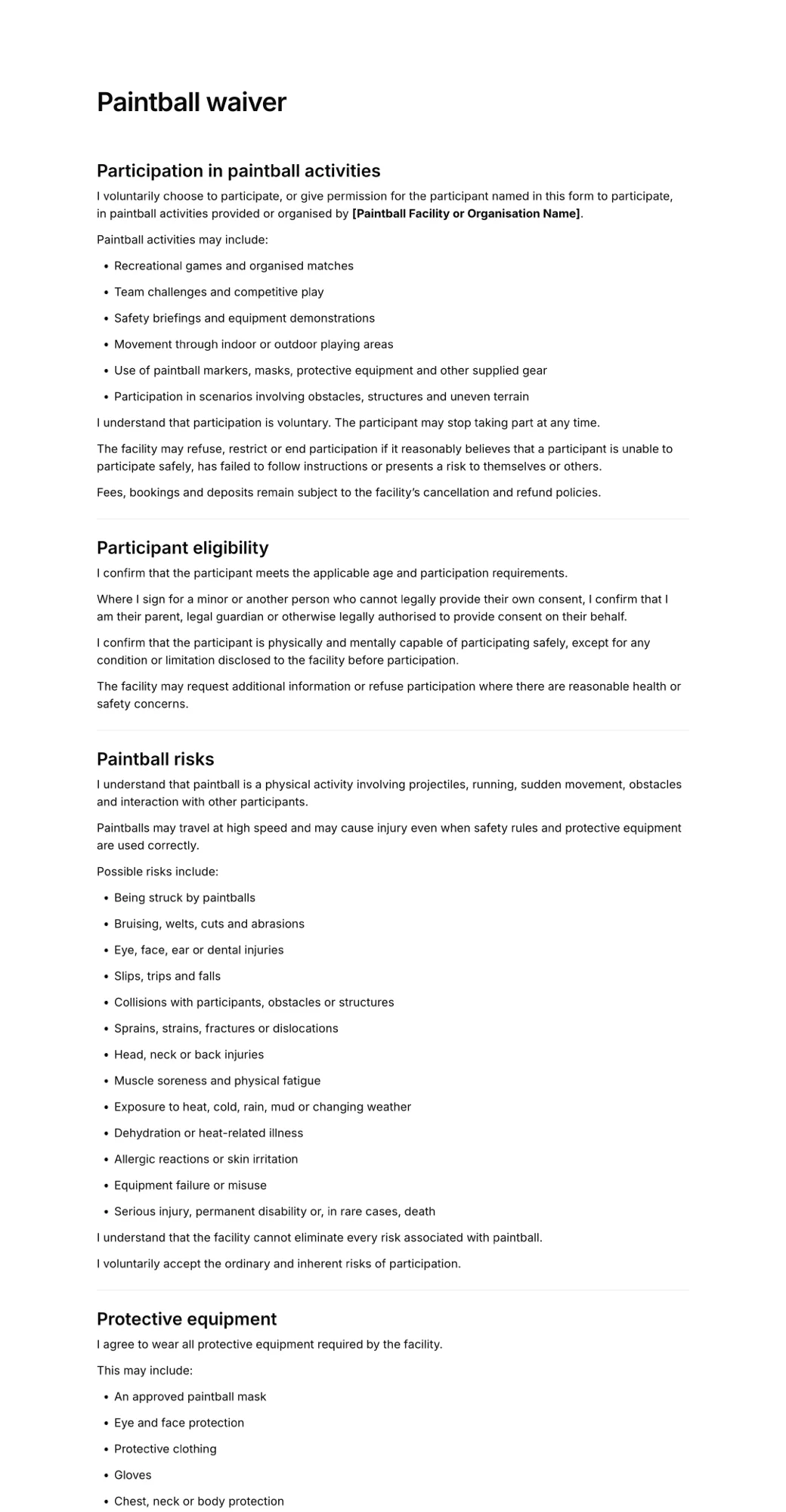
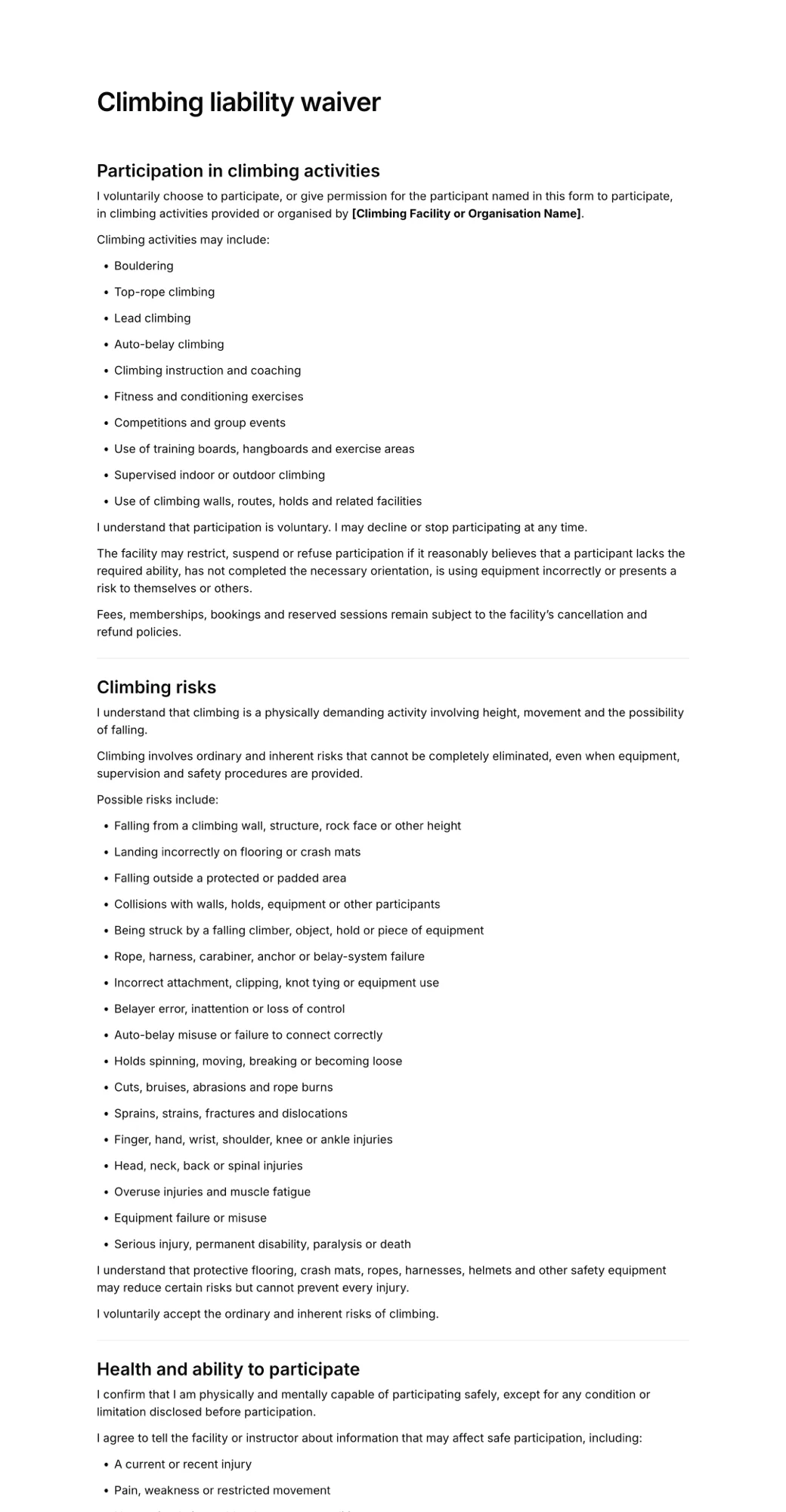
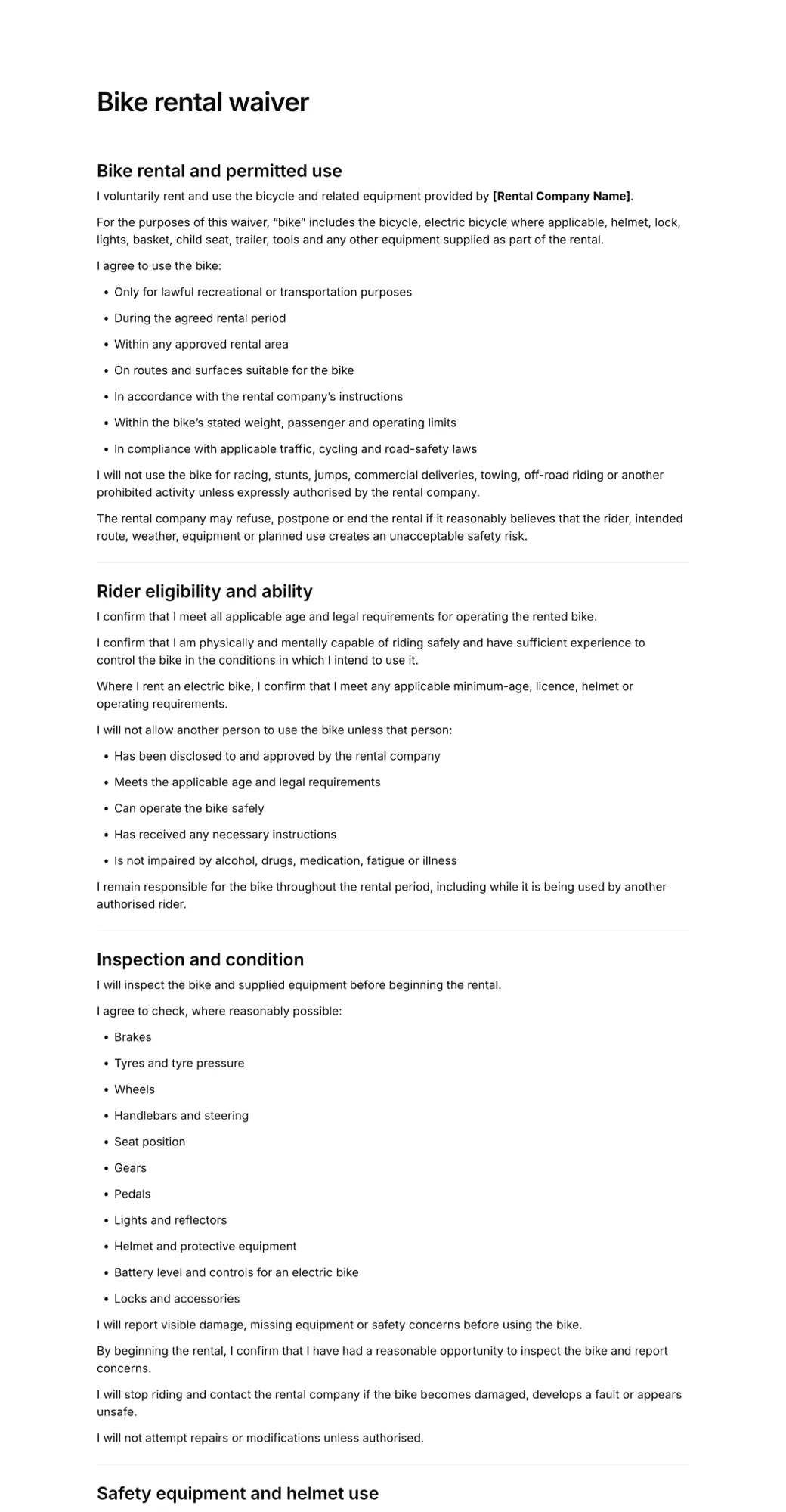
Waiver templates for walk-in businesses
Templates for venues where customers sign on arrival. Edit the wording and put it on your kiosk today.
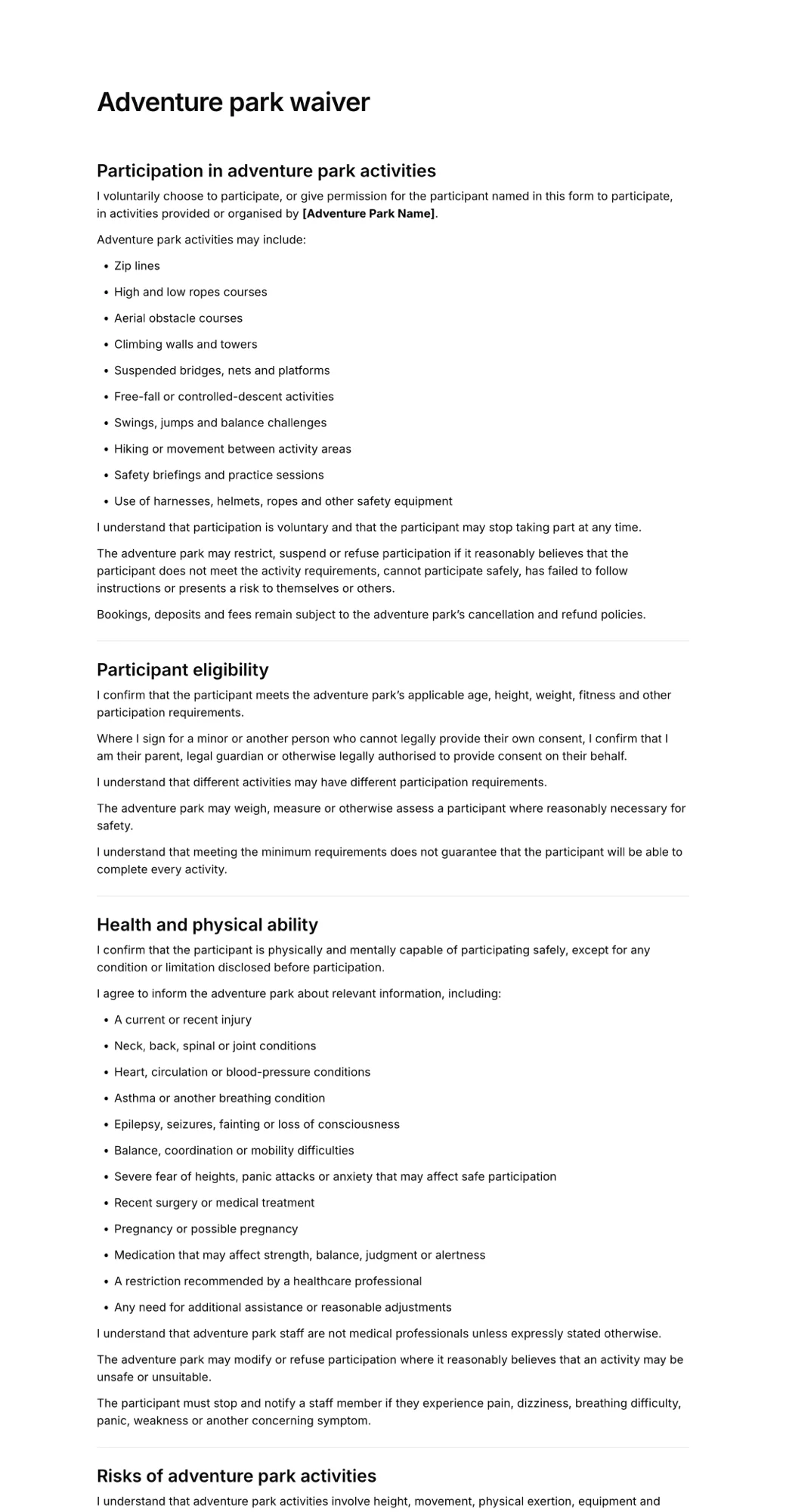
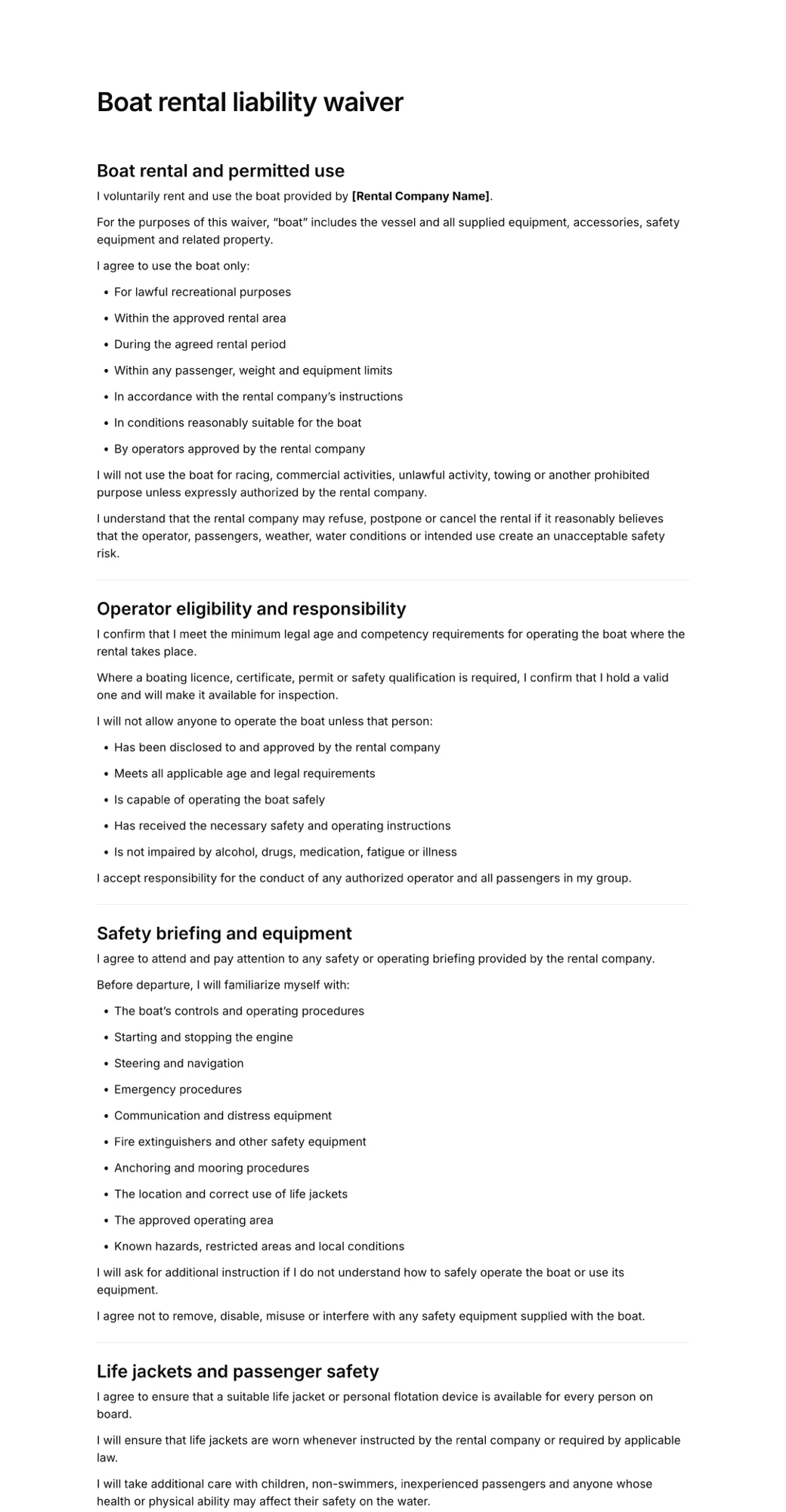
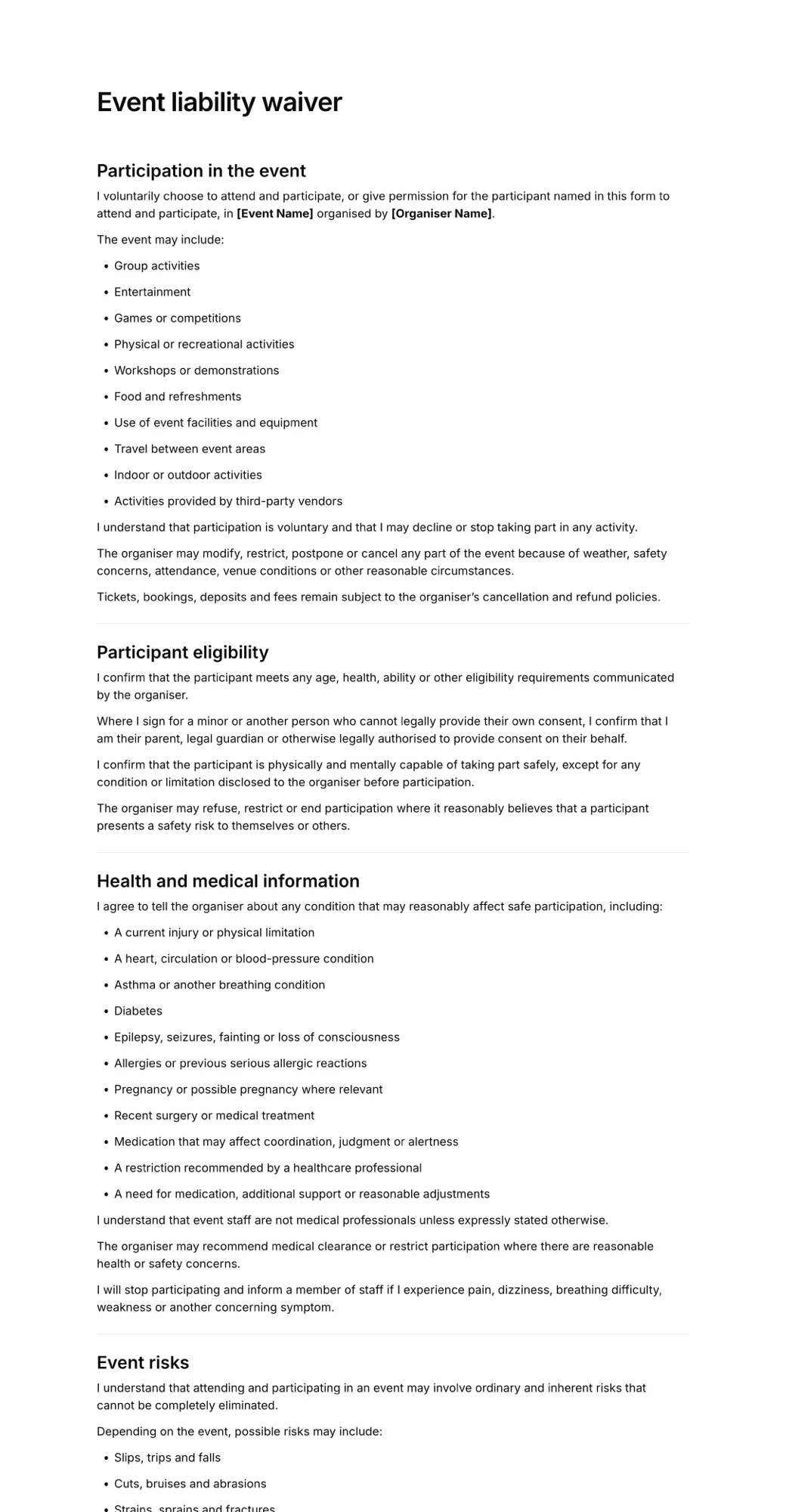
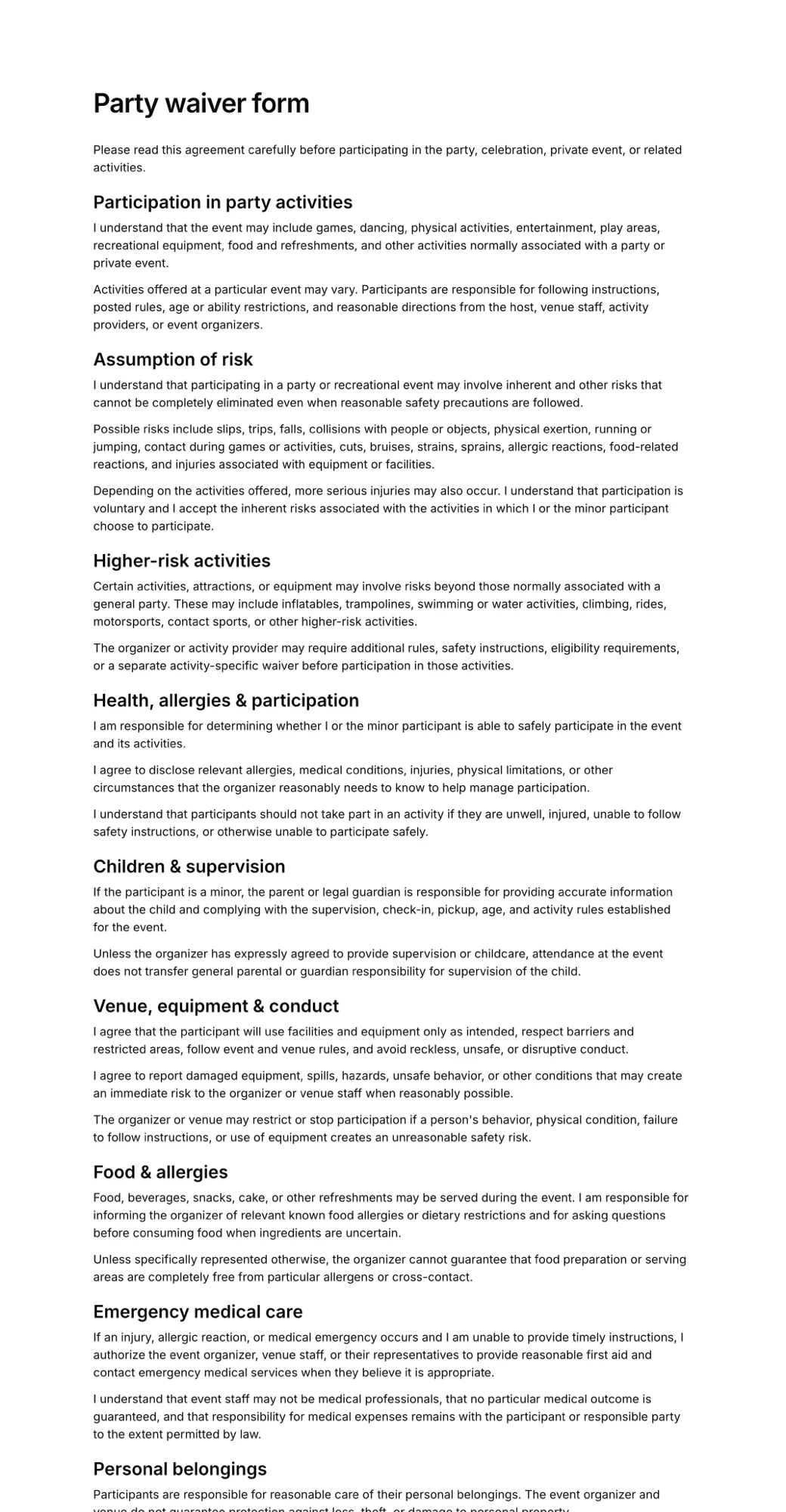
Where a waiver kiosk helps most
Businesses with walk-in customers and busy check-in times:
Trampoline and activity parks
Walk-in groups and birthday parties signing at the entrance.
Rental counters
Bike, boat and gear rentals signing while staff prepare the equipment.
Gyms and climbing walls
First-time visitors signing at reception before their session.
Events and races
Registration tables where participants sign on the day.
Camps and tours
Parents and guests who did not sign the link sent in advance.
Studios and salons
Consent forms signed on a tablet before the appointment begins.
Prefer customers sign on their own phones? Read about QR code waivers.
Frequently asked questions
What is a waiver kiosk?
A waiver kiosk is a tablet or screen at your front desk where customers read and sign a waiver themselves. Each customer signs, the waiver is saved, and the screen is ready for the next person, so staff do not have to hand out clipboards.
Do I need special kiosk hardware?
No. Any recent iPad, Android tablet or laptop with a web browser works. A tablet stand or locking case keeps it secure at the counter, but you do not need a dedicated kiosk machine or a separate app.
How do I stop customers leaving the waiver page?
Use your tablet's built-in lock mode. On iPad, turn on Guided Access in Accessibility settings and start it on the waiver page. On Android, use screen pinning (sometimes called app pinning). Both keep the tablet on one screen until staff unlock it.
Can a parent sign for several children at the kiosk?
Yes. After the first waiver is signed, the parent taps the button to start a new form and signs for the next child. Each child gets their own signed record.
Should I use a kiosk or a QR code?
Both. Ask customers to sign by link before they arrive, keep a tablet at the desk for walk-ins, and put a QR code beside it for busy periods. Our guide to QR code waivers compares the options.
Does the kiosk work offline?
No. The tablet needs an internet connection to submit each waiver, which is also how signed records reach your dashboard straight away. Wi-Fi or a mobile hotspot is enough.
How much does a waiver kiosk cost?
AgreeDock is free for up to 10 signatures each month. Pro costs $15 per month, or $10 per month billed yearly, with unlimited signatures, on as many tablets as you like.
Put a waiver kiosk on your front desk today
- Free to start
- Any tablet
- Signed records online