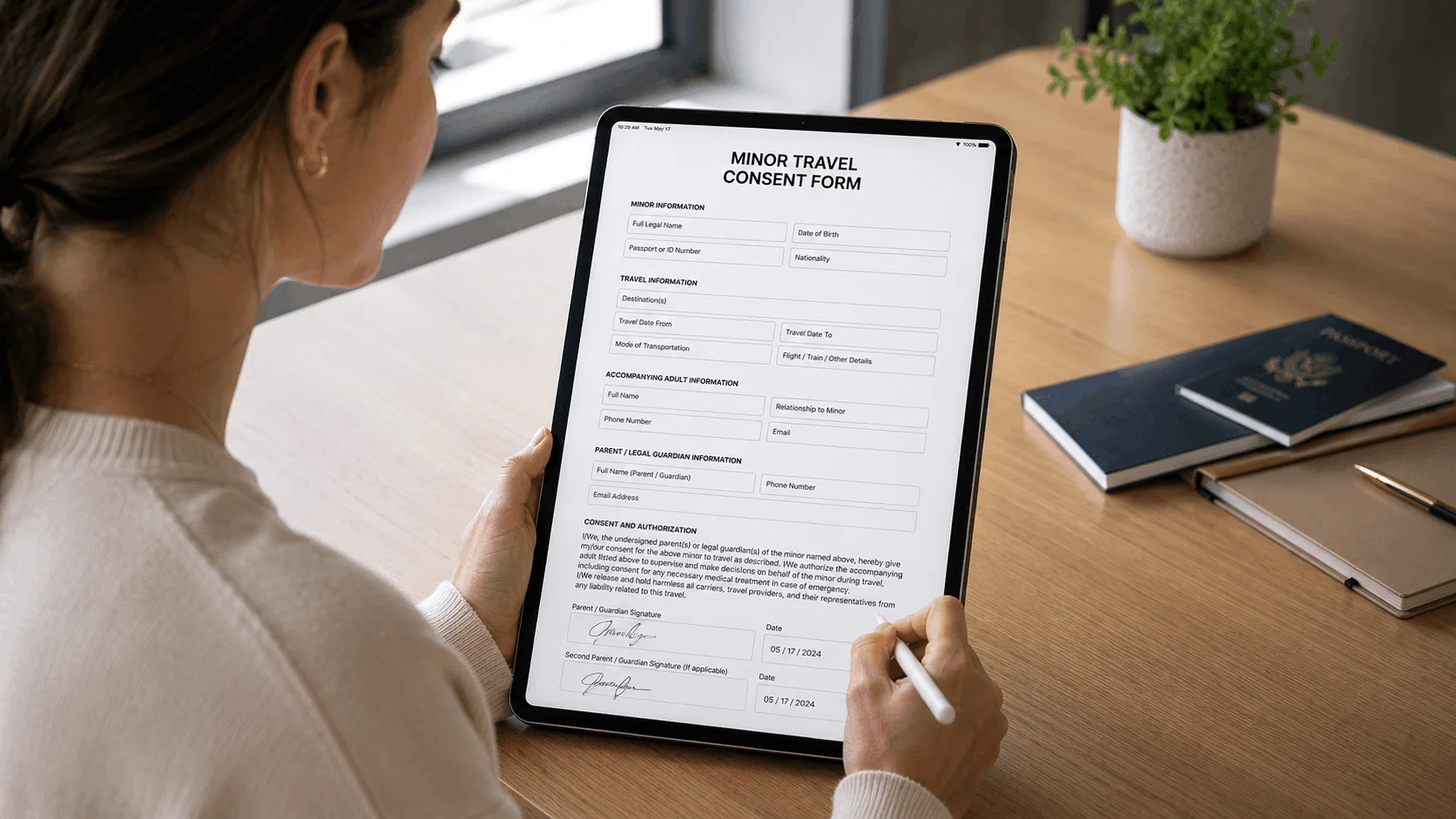
If you are looking for the signature question in Google Forms, you will not find it. Google Forms has no built-in signature field, so nobody can draw their signature on a Google Form out of the box.
That does not mean you are stuck. There are a few workarounds, and each one fits a different situation. Some are fine for an internal sign-up sheet. None of them give you what a waiver, consent form, or agreement usually needs: a drawn signature tied to the exact text the person agreed to, saved as a signed record.
In this guide we cover four ways to add a signature to a Google Form, the limits of each, and what to use instead when the signature actually matters.
Does Google Forms have a signature field?
No. Google Forms question types include short answer, paragraph, multiple choice, checkboxes, dropdown, file upload, linear scale, rating, grid, date and time. There is no signature type.
Google does offer eSignatures in Google Workspace, but they live in Google Docs and Google Drive, not Forms. You send a document out for signature; you cannot drop a signature box into a form.
So any "Google Forms signature" is one of these:
- A typed name plus an agreement checkbox
- An uploaded image of a signature
- A third-party add-on that adds a drawing pad
- A hand-off to a separate signing tool
Method 1: Typed name and an "I agree" checkbox
This is the simplest option and it needs nothing extra.
How to set it up
- Put your terms in the form description, or in a section description just above the signature questions.
- Add a Checkboxes question with one option, for example: I have read and agree to the terms above. Mark it Required.
- Add a Short answer question titled Type your full name as your signature. Mark it Required.
- Add a Date question for the signing date, or rely on the response timestamp Google Forms records automatically.
When it works
- Internal sign-off, like "I have read the employee handbook"
- Low-stakes acknowledgements, like club rules or a newsletter consent
- Situations where you just need a record that someone ticked a box
Limits
- There is no drawn signature, which many customers and staff expect on a waiver or consent form.
- The terms live in the form description. If you edit the form later, old responses do not keep the version the person agreed to.
- There is no signed PDF for each person. Responses land in a spreadsheet row.
Method 2: Ask people to upload a signature image
Google Forms has a File upload question. You can ask respondents to sign a piece of paper, take a photo, and upload it.
How to set it up
- Add a File upload question titled Upload a photo of your signature.
- Limit it to images and one file.
- Mark it Required.
Limits
- Respondents must sign in to a Google account to upload a file. Anyone without one, or anyone who does not want to sign in, cannot submit.
- It is slow and awkward on a phone: sign on paper, take a photo, crop, upload.
- The image is stored in your Google Drive, separate from the answers and the terms.
- Anyone could upload any image. Nothing ties it to the moment they agreed.
This is the method people try first and abandon first.
Method 3: Use a signature add-on
Several Google Workspace Marketplace add-ons add a signature pad to Google Forms. They usually work by replacing or wrapping your form so respondents can draw with a finger or mouse.
How to set it up
- In Google Forms, open the ⋮ menu and choose Get add-ons.
- Search for "signature" and review the options and their permissions.
- Install one and follow its setup, which usually means connecting it to a question or generating a new share link.
Limits
- Add-ons ask for access to your Google account and form data. Check what you are granting, especially for medical or personal information.
- Many free tiers limit responses or add branding.
- Most store the signature as an image link in your response sheet, not as a signed document.
- Few keep an audit trail or a copy of the exact text that was signed.
- If the add-on breaks or changes its pricing, your signing process breaks with it.
Method 4: Collect answers in Forms, sign in Google Docs
If your organization uses Google Workspace, you can combine tools:
- Collect the information with Google Forms.
- Merge each response into a Google Docs template, often with Apps Script or a merge add-on.
- Send the document for signature with Google Docs eSignature.
Limits
- It is two steps for the person signing: fill in a form, then wait for an email and sign a document.
- It needs a script or an add-on to connect the two, plus someone to maintain it.
- It does not work for walk-in signing, such as a QR code at reception or a tablet at the front desk.
This route suits contracts that are sent one at a time. It is too heavy for waivers or consent forms that dozens of people sign each day.
Comparison: which method should you use?
| Method | Drawn signature | No Google account needed | Signed record per person | Effort |
|---|---|---|---|---|
| Typed name and checkbox | No | Yes | No, spreadsheet row | Low |
| Upload a signature image | Photo only | No | No | Medium |
| Signature add-on | Yes | Usually | Varies | Medium |
| Forms plus Docs eSignature | Yes | Depends | Yes | High |
| Form builder with a signature field | Yes | Yes | Yes | Low |
What makes an electronic signature hold up?
Electronic signatures are recognized in many places, including under the ESIGN Act and UETA in the United States and eIDAS in the EU. Whether a particular signature holds up depends on the situation, but a few things consistently help:
- Intent to sign. The person clearly chose to sign, for example by drawing or typing their name in a field labelled as a signature.
- Consent to the terms. The terms were shown before signing, not hidden behind a link.
- A record of what was signed. You can show the exact wording the person agreed to, not only the latest version of your form.
- When it was signed. A date and time tied to the signature.
- Who signed. A name and contact details tied to the response.
- Retention. You can find and produce the signed record later.
A typed name in a Google Form can show intent. The weak points are usually the record of what was signed and the retention, because the form text can change and responses live as rows in a sheet.
Important: This article is general information, not legal advice. Signature and waiver requirements vary by jurisdiction and situation. For documents with significant liability, get advice from a lawyer.
When to use a form builder with a signature field instead
If the signature is the point of the form, a tool built for it is simpler than any workaround. That includes:
- Liability waivers
- Consent forms, such as a photo consent form or parental consent form
- Registration forms with a built-in waiver, such as a summer camp registration form
- Releases, such as a model release form
- Intake forms with consent, such as a massage intake form
- Agreements, such as a gear rental agreement
Look for:
- A signature field people can draw on with a finger or mouse
- No account or app needed to sign
- The exact text saved with each signature, so editing the form later does not change past records
- A signed PDF for each response
- A QR code for in-person signing, plus a link for signing ahead of time
- An email notification when someone submits
How to collect signatures with AgreeDock
AgreeDock is built for forms that need a signature. Here is the same job done without workarounds.
1. Start from a template or describe your form
Pick one of the ready-made templates, or describe what you need and let the AI waiver generator draft it. You can also paste in the text you were using in Google Forms.
2. Add your fields
Add contact details, short and long answers, dates, checkboxes, multiple choice, and a signature field, placed exactly where they belong in your text.
3. Share a link or QR code
Each form gets a public link and a QR code. People sign on their own phone, without an account or an app. See how to create a QR code waiver.
4. Get notified and keep the signed record
You get an email for each new response. Every response keeps the exact wording that was signed, and you can download it as a signed PDF.
The free plan covers 10 responses a month, and Pro is $15 a month for unlimited responses.
Create your form with a signature →
Frequently asked questions
Can you add a signature to Google Forms?
Not natively. Google Forms has no signature question type. You can collect a typed name with an agreement checkbox, ask for an uploaded signature image, use a third-party add-on, or move the signing step to a tool that has a signature field.
Is a typed name on a Google Form a legal signature?
A typed name can count as an electronic signature in many jurisdictions if the person clearly intended to sign and agreed to the terms. The weaker part is usually the record: Google Forms does not save the exact text each person agreed to, and responses are stored as spreadsheet rows. This is general information, not legal advice.
Why does my Google Form ask people to sign in?
Forms that include a File upload question require respondents to sign in to a Google account. If you are asking people to upload a signature image, everyone filling in the form needs a Google account.
Can I use Google Docs eSignature with Google Forms?
Not directly. Google's eSignature works in Google Docs and Drive. You can merge each form response into a document with Apps Script or an add-on and then send that document for signature, but it is a separate step for the signer.
Can people draw a signature on their phone?
Not in Google Forms on its own. With a signature add-on or a form builder that has a signature field, such as AgreeDock, people can draw their signature with a finger on any phone or tablet.
What is the best way to collect waiver signatures online?
Use a form that shows the full waiver text, collects a drawn signature, saves a copy of exactly what was signed, and gives you a signed PDF for each person. See our guide to the best form builders for waivers for a comparison.
Get a real signature without the workarounds
Google Forms is excellent for surveys and sign-up sheets. When you need a signature, the workarounds add steps for you and for the people signing, and still leave you without a proper signed record.
With AgreeDock, you can build a form with a signature field in minutes, share it by link or QR code, get an email for every response, and keep a signed PDF of each one.